
Help center
Guides with screenshots and field explanations for each HaikoLink mode.
Getting started
Create an account, fund your wallet, then start a room. The steps below match the screens you will see.
- Register with your email and confirm the link we send you.
- After activation, open Billing and top up your wallet.
- Create a room (voice or subtitles) and invite a registered participant.
- Allow microphone (and camera if you use video) when the browser asks.
- Speak naturally — translation and captions follow in real time.
Registration fields
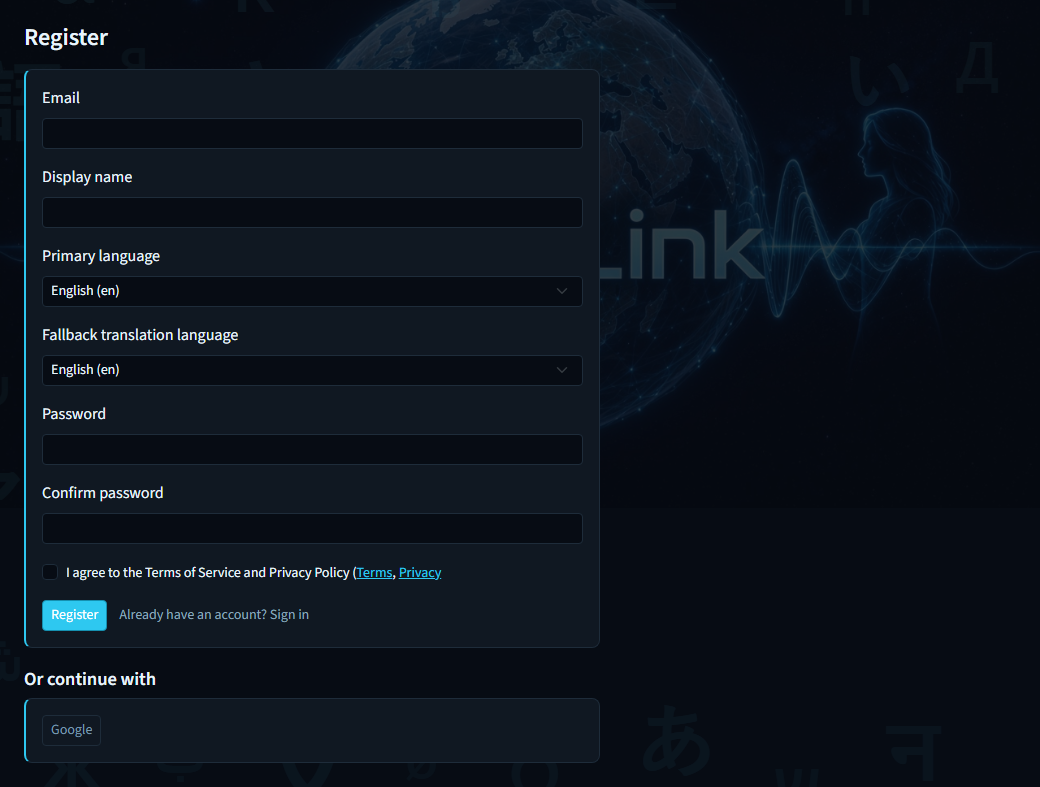
- Your sign-in address. We send a confirmation link here before you can use paid features.
- Display name
- How you appear to others in rooms and lectures. You can change it later in Profile.
- Primary language
- The language you usually speak. New rooms and lectures prefill this as your spoken language.
- Fallback translation language
- Preferred language for translations when a session does not set one explicitly.
- Password / Confirm password
- Choose a strong password and confirm it. You can also sign in with supported external providers if they are enabled.
- Accept terms
- Required. Opens the Terms of Service and Privacy Policy links so you can review them before creating the account.
Top up after sign-in
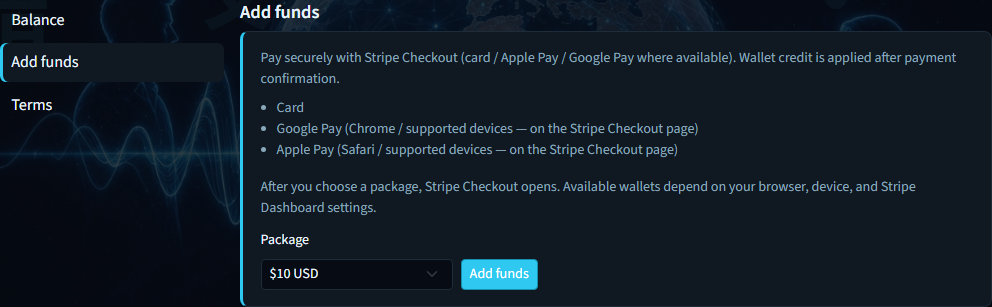
Pick a USD package and add funds before creating paid rooms. See Wallet & billing for every balance field.
Live voice translation
Live voice rooms are for two people. Each hears a spoken translation in their language; the original can stay audible at lower volume. Typed chat is translated too.
- Open Rooms → Create room and choose Live translation.
- Set room name, your language, and invite a registered user.
- Adjust translation style, translator, captions, and optional terminology.
- Create and open the room, then use mute, camera, and screen share in the call toolbar.
Room type
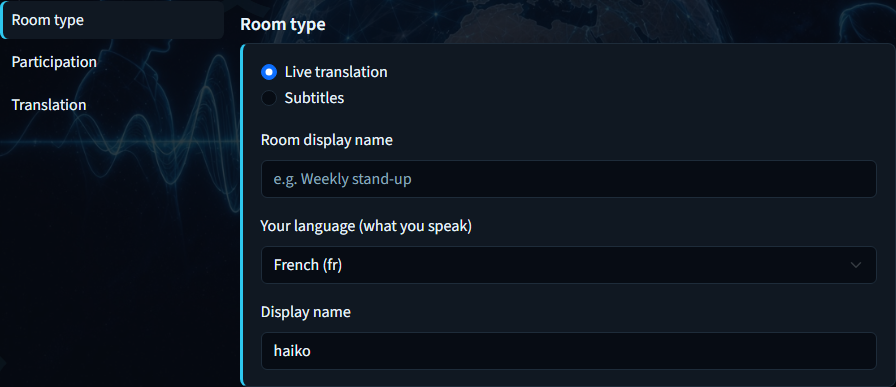
- Live translation
- Full two-person voice call with spoken translation (TTS) plus captions and chat.
- Subtitles
- Same 1:1 call with live captions instead of spoken translation — typically quieter and cheaper per minute.
- Room display name
- Title shown in your rooms list and to the invitee. Must be unique for your account.
- Your language (what you speak)
- Language you will speak into the mic. Prefills from your profile primary language when available.
- Display name
- Your name inside the session (stored in the browser). Separate from the room title.
Participation
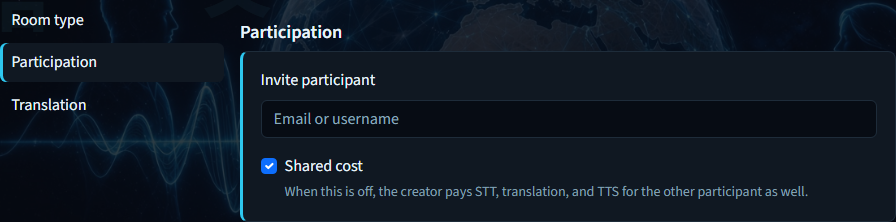
- Invite participant
- Email or username of a registered HaikoLink user. The invitee must already have an account.
- Shared cost
- When on, usage is shared as described on the form. When off, you as creator pay STT/MT/TTS for both participants.
Translation
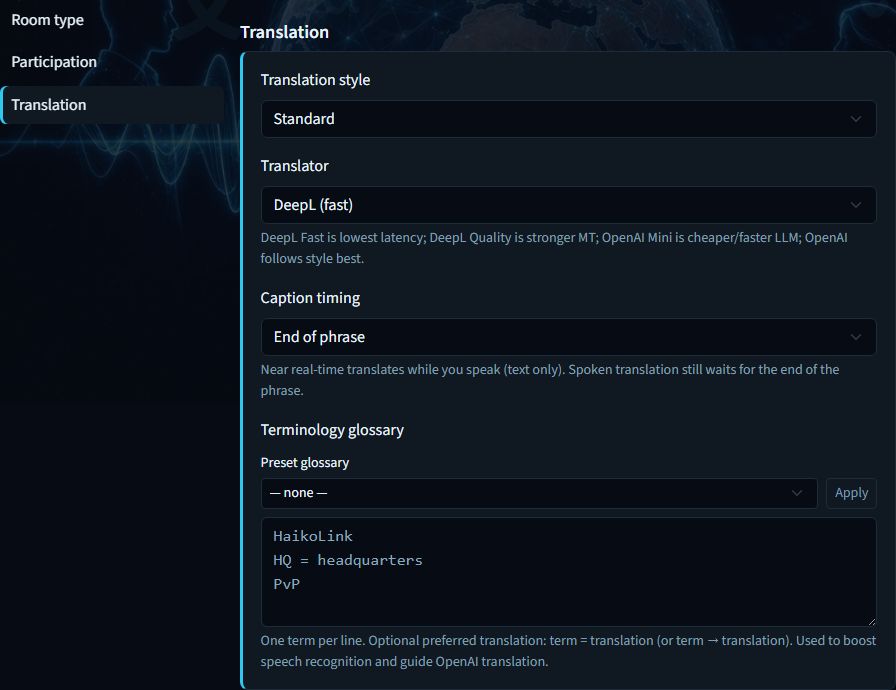
- Translation style
- Tone presets such as Standard, Friends, Colleagues, Gaming, or Ultra natural. Affects how the model phrases translations.
- Translator
- Machine-translation provider: Haiko Swift, Haiko Precise, Haiko Lite, or Haiko Adaptive. Higher quality can cost more and add slight latency.
- Caption timing
- End of phrase waits for a natural pause; Near real-time updates captions sooner while you are still speaking.
- Terminology preset + Apply
- Optional curated glossary (Business, IT, Healthcare, Legal, Finance, Gaming). Apply merges it into the terminology box.
- Terminology
- Custom terms and preferred translations. Used to boost speech recognition and keep Haiko Adaptive MT consistent for domain words.
Style and terminology catalogs are shared with lectures. Pick Standard if you are unsure.
Subtitles rooms
Subtitles rooms use the same create form as live voice, but focus on live captions instead of spoken TTS. Useful for quieter or lower-cost sessions while keeping video, audio of the peer, and chat.
- Open Rooms → Create room and choose Subtitles.
- Set room name, your language, and invite a registered user.
- Set caption timing and translation options (style, translator, terminology).
- Create and open — captions appear as you speak; per-minute cost is usually lower than full voice.
Room type
- Live translation
- Full two-person voice call with spoken translation (TTS) plus captions and chat.
- Subtitles
- Same 1:1 call with live captions instead of spoken translation — typically quieter and cheaper per minute.
- Room display name
- Title shown in your rooms list and to the invitee. Must be unique for your account.
- Your language (what you speak)
- Language you will speak into the mic. Prefills from your profile primary language when available.
- Display name
- Your name inside the session (stored in the browser). Separate from the room title.
Participation
- Invite participant
- Email or username of a registered HaikoLink user. The invitee must already have an account.
- Shared cost
- When on, usage is shared as described on the form. When off, you as creator pay STT/MT/TTS for both participants.
Translation
- Translation style
- Tone presets such as Standard, Friends, Colleagues, Gaming, or Ultra natural. Affects how the model phrases translations.
- Translator
- Machine-translation provider: Haiko Swift, Haiko Precise, Haiko Lite, or Haiko Adaptive. Higher quality can cost more and add slight latency.
- Caption timing
- End of phrase waits for a natural pause; Near real-time updates captions sooner while you are still speaking.
- Terminology preset + Apply
- Optional curated glossary (Business, IT, Healthcare, Legal, Finance, Gaming). Apply merges it into the terminology box.
- Terminology
- Custom terms and preferred translations. Used to boost speech recognition and keep Haiko Adaptive MT consistent for domain words.
Style and terminology catalogs are shared with lectures. Pick Standard if you are unsure.
Local (one device)
Local translation is for two people sharing one phone or laptop. Take turns speaking; the app translates both ways with voice and text. Ideal for travel and face-to-face meetings.
- Open Local translation from the sidebar.
- Name the session and pick Language A and Language B (they must differ).
- Optionally set translation style, then Start.
New local session
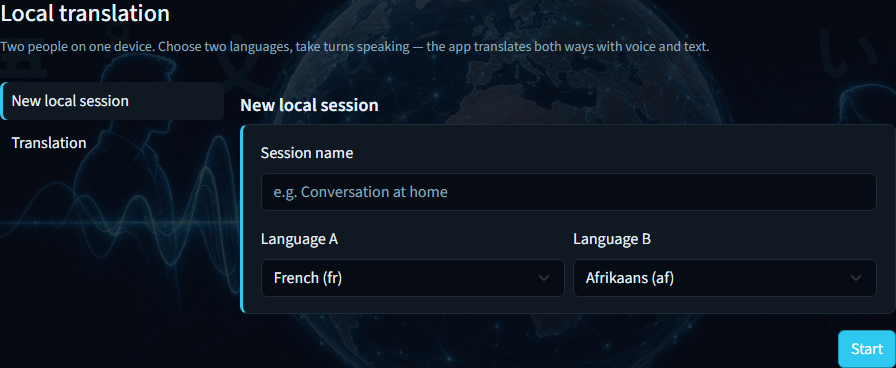
- Session name
- Label for this face-to-face session in your rooms list (for example “Conversation at home”).
- Language A
- First language in the pair. Usually the language of the first speaker; options are languages with supported on-device TTS.
- Language B
- Second language. Must be different from Language A so the session can translate both ways.
Translation
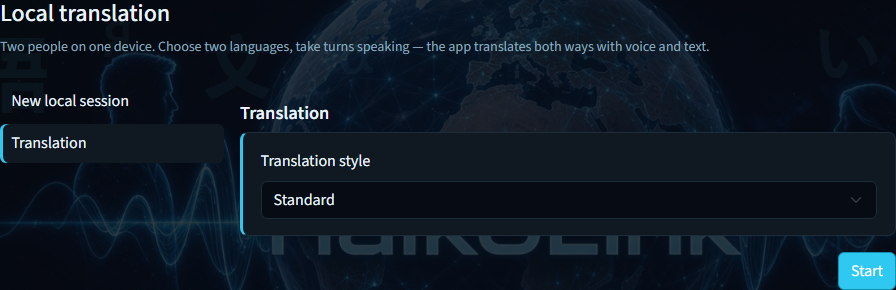
- Translation style
- Same tone presets as other modes (Standard, Friends, and so on). Local sessions do not expose translator or terminology controls on this page.
Lectures & conference
Lectures let one speaker present to many listeners with live captions per guest language. Guests can join via link without an account. A start fee may apply — see Pricing.
- Open Lectures → Create lecture and fill the Lecturer panel (name, schedule, duration, language).
- Configure Access, Participation (open link or named guests), Production, and Recording.
- Choose text/audio languages, translator, style, and optional terminology; review Cost.
- Create, copy join links, then open the lecture room to start when ready.
Lecturer
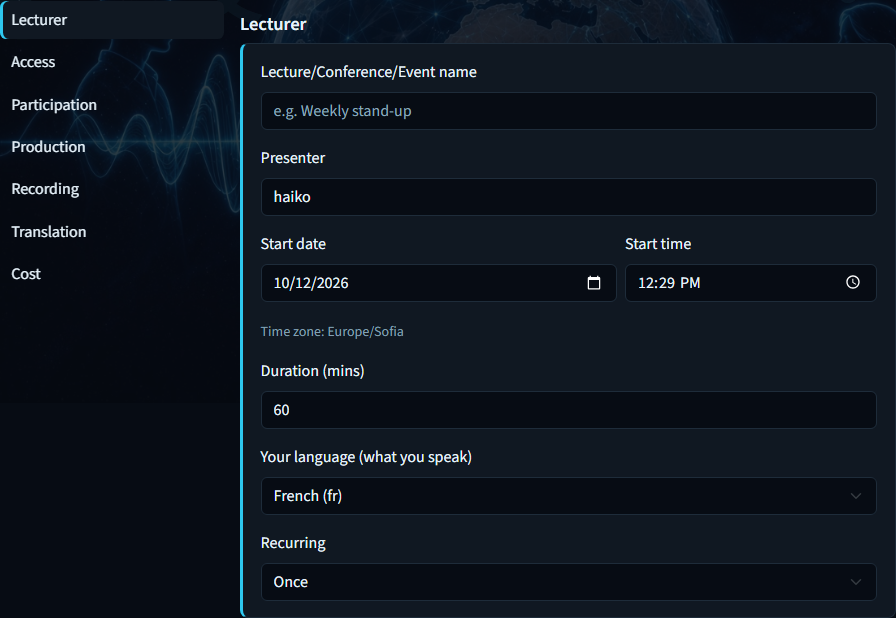
- Lecture / Conference / Event name
- Public title of the event shown to guests and in your lectures list.
- Presenter
- Name shown as the speaker. Prefills from your profile display name when available.
- Start date & time
- Planned local start. The time zone hint shows your browser’s IANA zone; the server stores UTC.
- Duration (mins)
- Planned length (15–480 minutes). Used for the cost estimate on the Cost panel.
- Your language (what you speak)
- Language the lecturer will speak. Seeds default text languages for listeners.
- Recurring
- Once, daily, weekly, or monthly — how the event is scheduled for repeat sessions.
Access
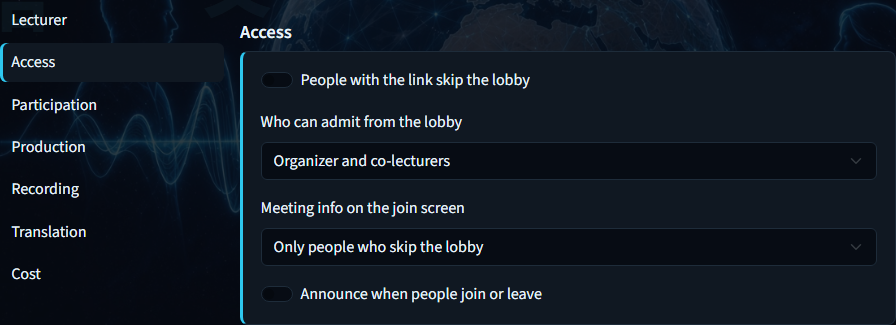
- People with the link skip the lobby
- When on, link holders enter without waiting for admit. When off, they wait in the lobby until admitted.
- Who can admit from the lobby
- Organizer only, or organizer and co-lecturers — who may admit waiting guests.
- Meeting info on the join screen
- Controls who sees meeting details on the join screen: bypass-only guests, everyone, or nobody.
- Announce join / leave
- When on, the room announces when people join or leave.
Participation
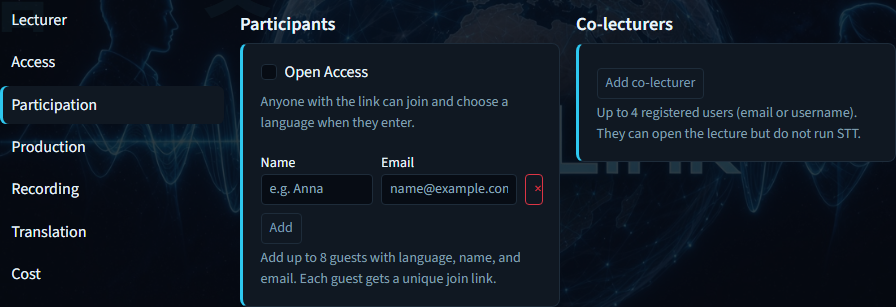
- Open access
- Anyone with the open-access link can join. Named guest rows are hidden when this is on.
- Named guests (name + email)
- Up to eight guests with personal join links. Guests do not need a HaikoLink account.
- Co-lecturers
- Up to four registered users (email or username). They can help run the lecture but do not use lecturer STT billing the same way.
Production
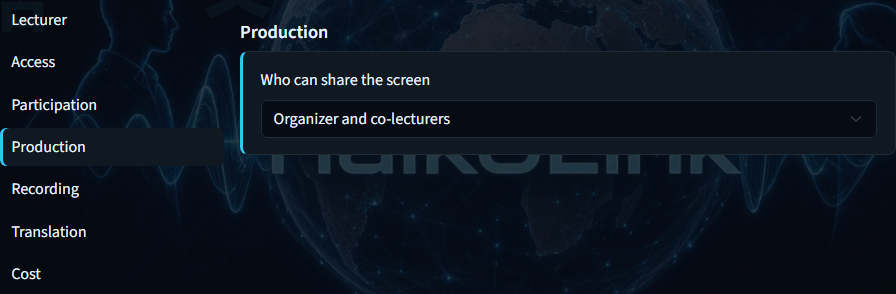
- Who can share the screen
- Organizer only, or organizer and co-lecturers — who may start screen share during the lecture.
Recording
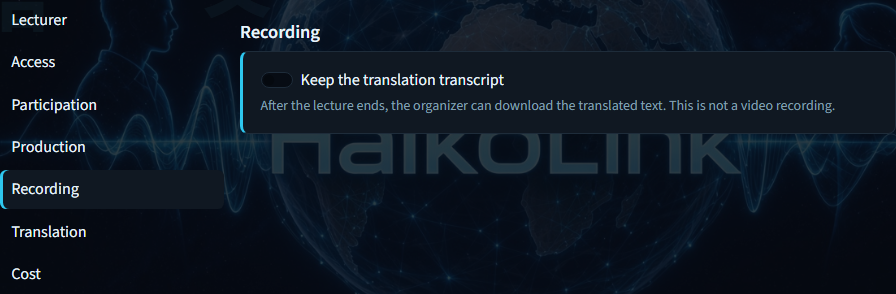
- Keep the translation transcript
- Stores a text transcript of translations for download after the lecture ends. This is not a video recording.
Translation
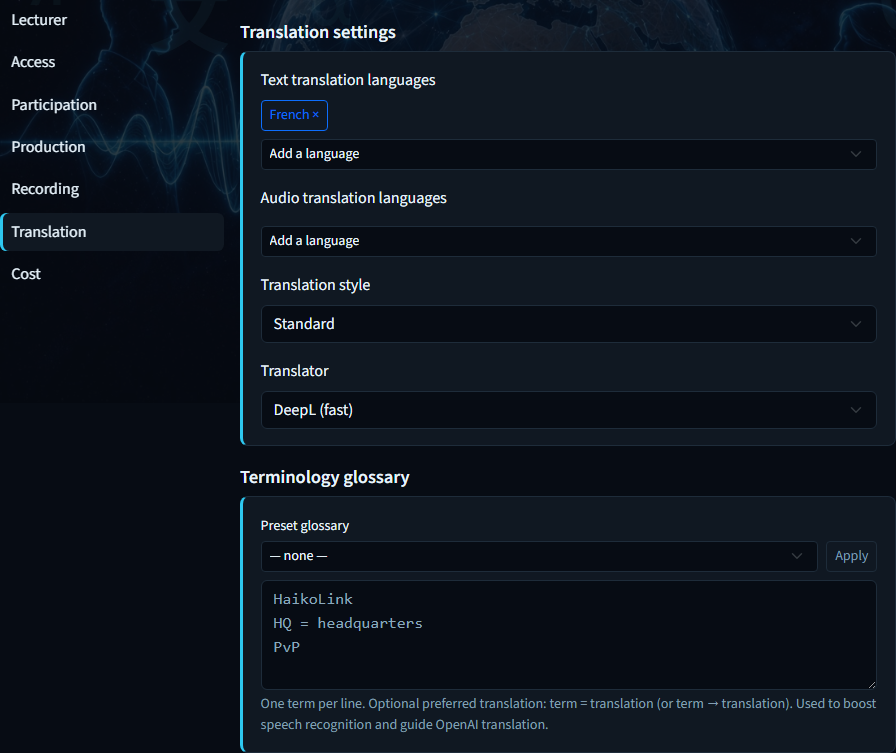
- Text languages
- Languages for live captions / text MT for listeners. At least one is required.
- Audio languages
- Languages that get spoken TTS for listeners. Must be a subset of the text languages.
- Translation style
- Tone preset for lecture translations (same catalog as rooms).
- Translator
- MT provider for guest languages. Affects quality, latency, and the cost estimate.
- Terminology glossary
- Optional preset + custom terms so names and domain words stay consistent in captions and speech.
Cost
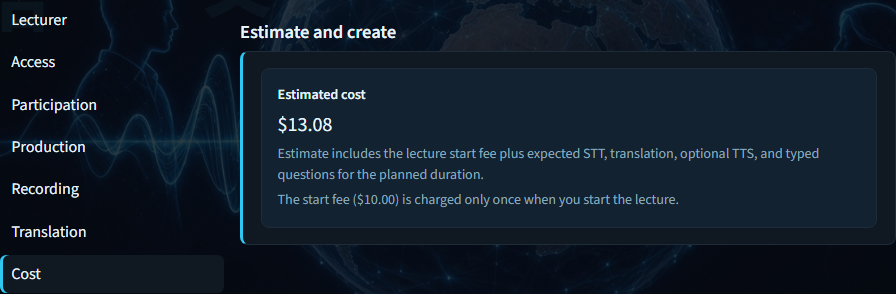
- Estimated cost
- Read-only estimate from duration, languages, and translator settings (start fee + usage components).
- Start fee
- Charged once when the lecture actually starts — separate from per-minute usage.
After create, copy the open-access or per-guest join links before you share them. You can reopen the lecture from Lectures or Rooms.
Wallet & billing
Your wallet pays the monthly site fee and per-minute usage. Top up with a fixed package, then use rooms and lectures until the balance is low.
- Open Billing while signed in and check Balance.
- Use Add funds to choose a package and top up.
- Review Terms, and when present, Usage by room and Recent activity.
Balance
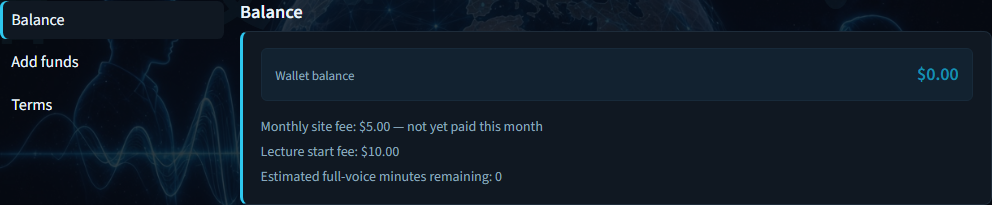
- Balance
- Current prepaid wallet amount in USD available for fees and usage.
- Monthly fee
- Site fee for the current month, shown as paid or unpaid.
- Lecture start fee
- Amount charged once when you start a lecture (shown for planning).
- Estimated full-voice minutes remaining
- Rough estimate of how many full live-voice minutes your balance can still cover.
Add funds
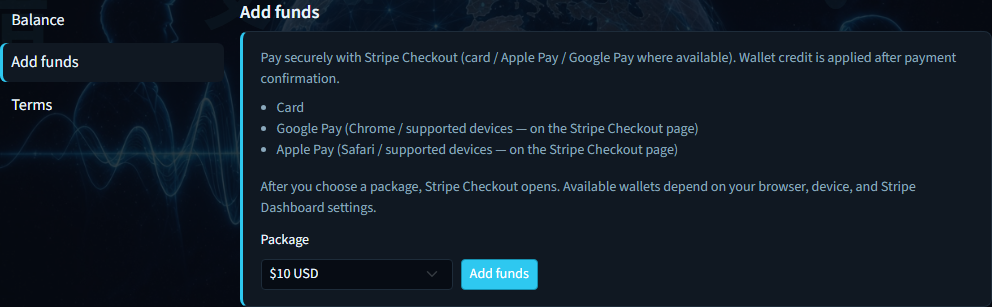
- Package
- Fixed USD top-up amount (for example $10, $25, $50, $100).
- Add funds
- Submits the top-up. In development this may be simulated; in production it opens the configured checkout (card / wallet pays).
Terms

- Wallet terms
- How prepaid credit is used for fees and usage. Full legal text is linked from Billing and Legal pages.
- Refund policy
- Summary of when refunds apply. Always check the linked Terms and Privacy for the binding text.
Usage by room and Recent activity tabs appear after you have session or ledger charges. Public price estimates are also on the Pricing page.